#PowerJanta – Power BI July 2026 Feature Summary
· 2 min read
On this page
#PowerJanta – Power BI July 2026 Feature Summary
Here is my selection of noteworthy highlights from Microsoft Power BI July 2026 Feature Summary.
Reporting
Conditional formatting for line charts and legends – Generally Available
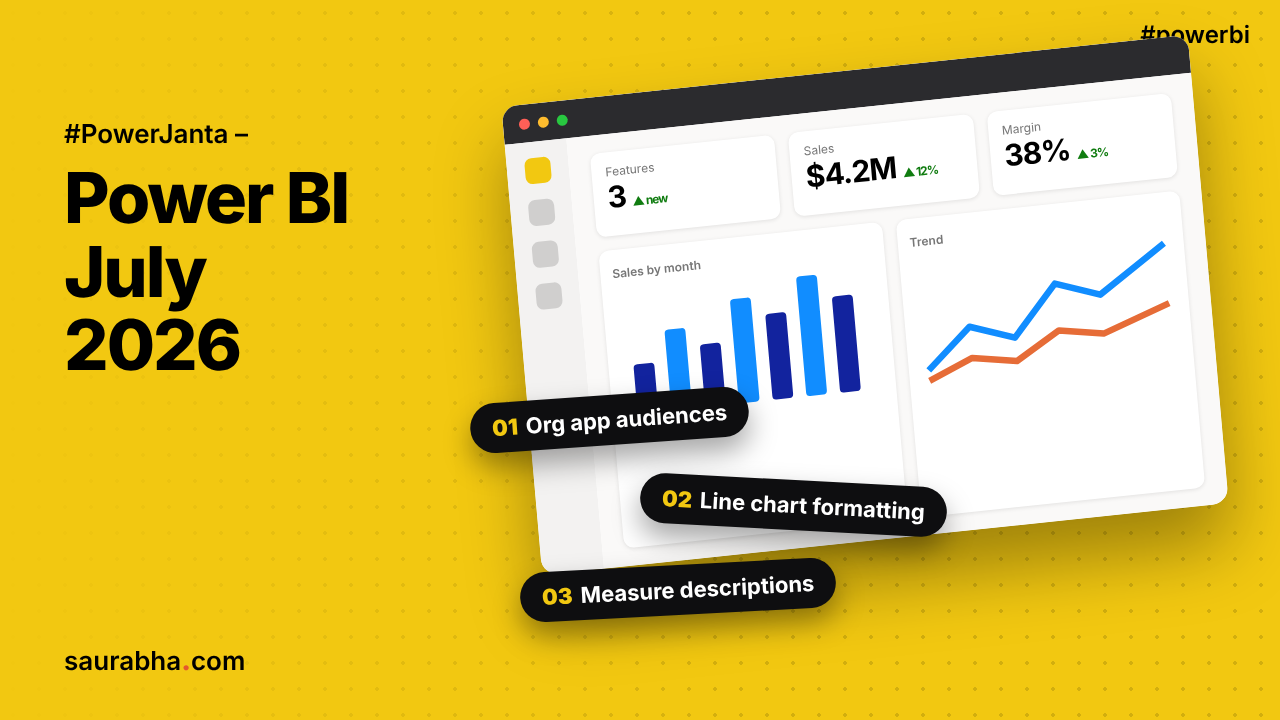
Gradient line colours based on total value or category, and consistent colours via a single DAX measure. It also works on bar, column, pie and donut charts.

Page tab navigation improvements – Generally Available
Tabs keep scrolling while you drag one to reorder, and the arrow buttons are more precise. Long reports will thank you.
Org apps
Org apps with audiences – Generally Available
Show different content to different groups of users within one app.

CRUD APIs for org apps, audiences and paginated reports
Create, read, update, delete and list through Fabric REST APIs, which helps with automation and deployment.
Modeling
Measure descriptions with triple-slash comments
Write /// above a MEASURE in DAX query view, same as TMDL, and the description is written to the model when you update it.

Model options in the Power BI Service
The Model options dialog is now available in web modeling.

Heads up
OneDrive and SharePoint saving
From October, Desktop versions from March 2026 or earlier can no longer save and share to OneDrive and SharePoint. Update your Desktop.
If you like this content or want me to stress on something, feel free to reach out to me at me@saurabha.com with your comments, suggestions and feedback.
Check out my previous post titled #PowerJanta – Power BI June 2026 Feature Summary. To know more about #PowerJanta, click here.
Image Credits: Microsoft’s Official Power BI July 2026 Feature Summary
Keep reading
#PowerJanta – Power BI November 2026 Feature Summary
My picks from the Power BI November 2026 Feature Summary: style presets GA, list slicer dropdown GA, date picker as default slicer and org app audience conversion.
#PowerJanta – Power BI October 2026 Feature Summary
My picks from the Power BI October 2026 Feature Summary: chart plot area colors, auto-expand hierarchy axis, the custom visual skill and the mobile page indicator.
#PowerJanta – Power BI September 2026 Feature Summary
My picks from the Power BI September 2026 Feature Summary: agentic authoring GA, data answers in M365 Copilot Chat, Design ribbon and PBIP GA.